Owner · Manager · 4 min
Connect your work email
Connect the mailbox that receives freight requests. The agent will read new requests and prepare drafts, but it will not send anything without you.
What you will get
The mailbox will show Connected. New freight requests sent to that address will appear in RFQ.
Steps
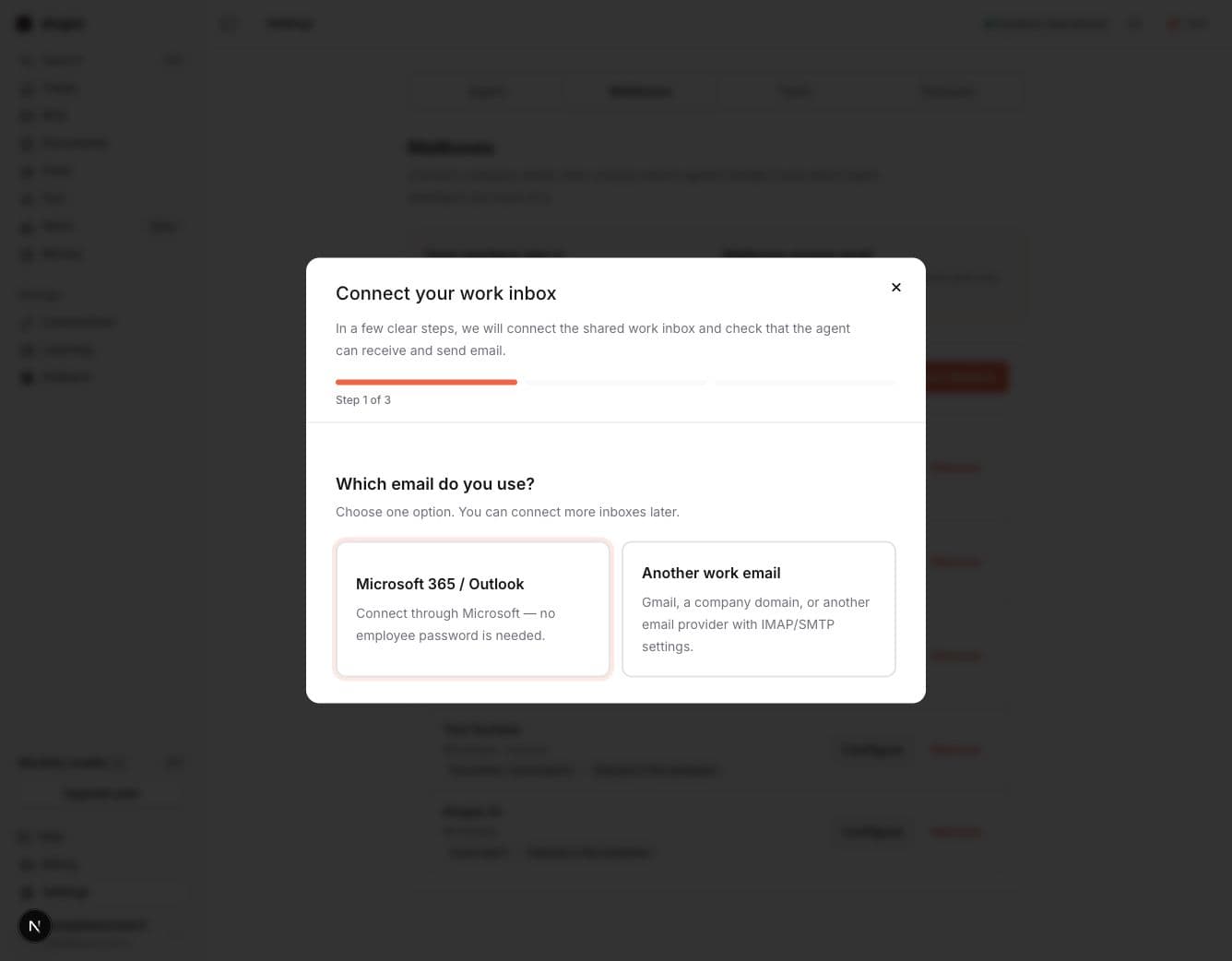
- Open Connections → Mailboxes and choose Connect email.
- Select Microsoft Outlook if your company uses Microsoft 365. Select Other email (IMAP/SMTP) for Gmail or another provider.
- Follow the instructions shown for your provider. For Gmail, first turn on 2-Step Verification, then open the separate Google Account App passwords page. Create one for
Mailand paste the generated 16-character code without spaces; your normal Google password will not work. - Complete the connection test. 4logist checks receiving and sending separately.
- When both checks pass, choose Connect mailbox.
Need a person? Open Help at the bottom of the app and choose Message support.
Next useful stepConnect Microsoft 365 or Outlook →